see URL:
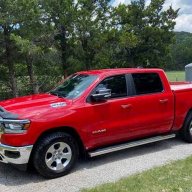
The Ram 1500, a popular pickup truck known for its power and versatility, also offers a range of innovative features designed to enhance your driving

myseasilver.com
--------------------------------------------------------------------
From 25 Manual: U may wanna download yer manual.
SMART PHONE AS A KEY — IF EQUIPPED
OWNER DIGITAL KEY PAIRING
Your vehicle may be equipped with the ability to use
your smartphone as a Digital Key to lock/unlock and
start the vehicle. In order to enable this feature,
complete the following steps in the smartphone APP
and the Uconnect system simultaneously:
Smartphone Procedure:
1. Enroll within your Brand Connect application using
your smartphone device
2. Once enrolled successfully, navigate to the Digital
Key tile on the Brand Connect application home
screen and press “Start Pairing”
3. Follow the prompts to add the Digital Key to the
smartphone wallet
Uconnect System Procedure:
1. Within the App drawer, select “Digital Key App”
2. Select “Add Owner Key”
3. To pair, place smartphone on the Wireless
Charging Pad
4. “Digital Key Successfully Added” will appear on
screen once pairing has completed
NOTE:
● In order to use Smart Phone As A Key, the
smartphone must meet certain hardware and
software requirements. Please check with your
smartphone manufacturer for regional compatibility
requirements and feature availability
● Depending on your device, you may
need to tap the smartphone against the
door handle and NFC capable wireless
charging pad ð page 71 to access and start the
vehicle. Smartphones without UWB (Ultra-wideband)
technology will not support hands-free vehicle
access and start functionality
● For additional safety, it is recommended that you
carry the back-up NFC card with you at all times to
cover instances such as loss of phone or phone with
a drained battery
● For any service related activities, users are required
to carry along and hand over physical keys to the
service dealer
● NFC cards or devices could leave the vehicle
authenticated under certain circumstances. Users
should ensure they are aware of the vehicle state
and lock the car to prevent misuse, theft or serious
accidents
● If the vehicle detects a key (digital or physical) in
the cabin, the doors will not lock. Please check for
presence of phones or key fobs in the cabin
● Proximity functions for the digital key may be
temporarily suspended if the digital key has been
present in the vicinity of the doors for an extended
period of time
Key Sharing
As the owner you have the ability to share Digital Keys
with iOS and Android users. To share a Digital Key
complete the following steps:
Sharing A Digital Key
1. Beginning with the owner’s smartphone, navigate
to device wallet and select the Digital Key
2. Locate the sharing icon to select the phone
contact you wish to share the Digital Key with
3. To continue, select the type of access to be
provided with the Digital Key (sharing options could
include full access, unlock only, or valet mode)
4. It is recommended you share keys with an
activation code for maximum security.
Once Digital Key options have been selected and sent
to shared contact, they cannot be edited unless access
is revoked and re-shared.
Receiving A Digital Key
1. Upon receiving a Digital Key invitation message
from the owner, click the message link to proceed
2. Input activation code from vehicle owner
3. Digital Key will now be added to your wallet.
NOTE:
In certain instances, the vehicle systems may require
additional time to respond to a shared digital key
unlock request (e.g. a newly created key approaches
the vehicle for the first time)
Key Deletion
Smartphone Procedure:
1. Navigate to smartphone device wallet
2. Tap the Digital Key and proceed to remove the key
by using the menu option provided
Uconnect System Procedure:
1. Within the App drawer, select “Digital Key App”
2. Select which phone you wish to remove by tapping
the delete button provided
3. The owner smartphone will show a delete
authorization pop-up to confirm that it is safe to
delete the key. Selecting “Approve” in the pop-up
will confirm key deletion and selecting “Deny” will
prevent the key from being deleted via the vehicle
Uconnect system
NOTE:
Owners should delete all paired digital keys from the
vehicle at the end of ownership. Deleting the connected
vehicle APP or the resetting the Uconnect system to
factory will not delete paired digital keys. Users are
required to delete keys as per the process mentioned
above or by reaching out to the call center to perform a
‘Return to New’ process which will delete all associated
information from the cloud servers and delete all owner
and shared digital keys