

chrisp2493
Always Modding
- Joined
- Oct 30, 2016
- Posts
- 3,006
- Reaction score
- 1,874
- Location
- Warren, OH
- Ram Year
- 2003
- Engine
- 392 Hemi
If you are like me, datalogging on the actual handheld tuner is a major pain. The screens are hard to navigate and especially hard to find specific parameters to create a logging page. Well I found out that Diablo has a program to datalog with your computer. Since I tend to do a lot of logging with my truck build it has saved me alot of time and hassle messing around with the tuner thats mounted on the a pillar. So here is a basic guide to using it if you've never heard of this program. Now I do not know all the ins and outs of the program, so this is just the way I use it and it works great for me
First off head to the Diablo download webpage and get the program loaded and installed
https://www.diablosport.com/downloads/

This is the main screen of the program that pops up when you run it. There should be all the basic instructions on the screen. After its running, connect the tuner into the OBD-II port and have it set to the main screen. Then use the USB cable and hook it up to your laptop.

Then click the "Connect Tool" button. It will take a minute to search for the tuner but it should start up automatically.
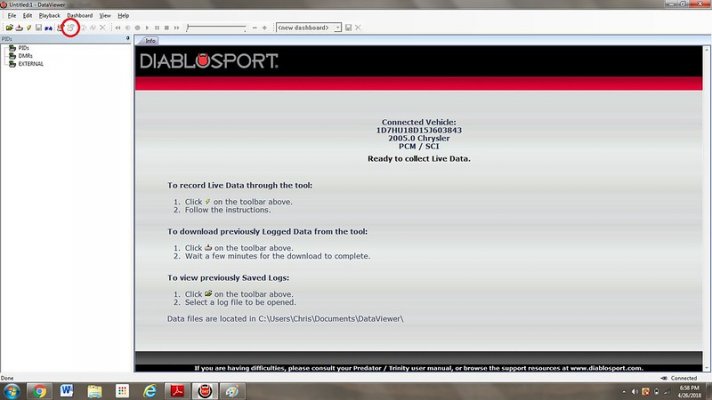
After the tuner is connected, click the "Live Data" button
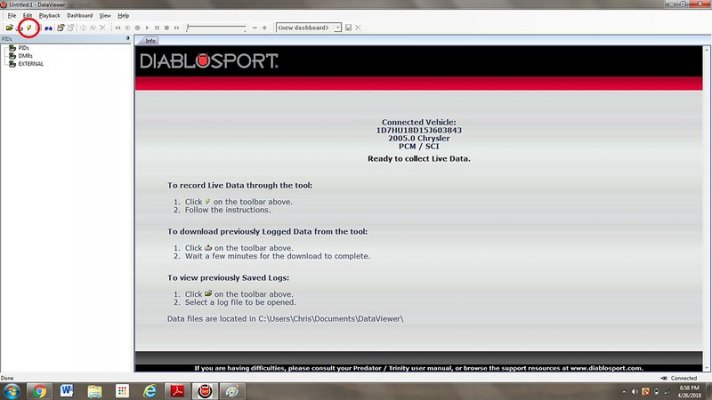
Next will bring you to the gauge page with a side bar with all the selectable parameters you can monitor. Select whatever ones your Tuner has asked you to log. This is the best part of the program, it's way easier to find some of the obscure parameters, you don't have to dig around on the handheld looking through all the menus.

After you select all the necessary gauges, click on the yellow "Connect" button to start the live feed. When the feed is live you will no longer be able to add new gauges in. You'll have to disconnect it and go through it again.
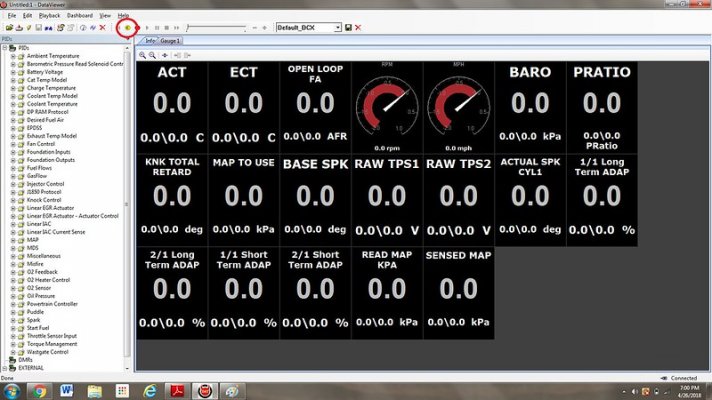
Just hit the red record button and it will start recording until you stop it. After you stop the recording, it will automatically bring up a menu to save the log

After it saves just click the yellow "Connect" button and it will refresh the gauges for the next log. Another advantage is the program will keep track of the gauges you have selected and the next time you open it up, they will all be ready to go. That makes it awesome if you have multiple tune revisions and logging sessions. That's the basic rundown, after you save the logs you can just add them as attachments in an email to send to your tuner.
First off head to the Diablo download webpage and get the program loaded and installed
https://www.diablosport.com/downloads/
This is the main screen of the program that pops up when you run it. There should be all the basic instructions on the screen. After its running, connect the tuner into the OBD-II port and have it set to the main screen. Then use the USB cable and hook it up to your laptop.
Then click the "Connect Tool" button. It will take a minute to search for the tuner but it should start up automatically.
After the tuner is connected, click the "Live Data" button
Next will bring you to the gauge page with a side bar with all the selectable parameters you can monitor. Select whatever ones your Tuner has asked you to log. This is the best part of the program, it's way easier to find some of the obscure parameters, you don't have to dig around on the handheld looking through all the menus.
After you select all the necessary gauges, click on the yellow "Connect" button to start the live feed. When the feed is live you will no longer be able to add new gauges in. You'll have to disconnect it and go through it again.
Just hit the red record button and it will start recording until you stop it. After you stop the recording, it will automatically bring up a menu to save the log
After it saves just click the yellow "Connect" button and it will refresh the gauges for the next log. Another advantage is the program will keep track of the gauges you have selected and the next time you open it up, they will all be ready to go. That makes it awesome if you have multiple tune revisions and logging sessions. That's the basic rundown, after you save the logs you can just add them as attachments in an email to send to your tuner.


