I have a '21 3500 with a cargo cam and an 8' bed. The camera is handy for hitching the gooseneck, except those lines that are supposed to help, obscure the hitch ball. I've tried using the on-screen adjustment to move them out of the way, but they're still always in the way. Is it possible to shut them off all-together?
@RadioActiveLamb
YES!!!
FROM my 2019 MANUAL: Here U go OP: Not print all, but applicable ref your question: All settings in U Conn Multimedia screen setups
NOTE: For further information about how to access and
change the programmable features of the ParkView Rear
Backup Camera, refer to “Uconnect Settings” in “Multimedia”
for further information.
A dashed center line overlay indicates the center of the
vehicle to assist with parking or aligning to a hitch/
receiver. The following table shows the approximate distances
for each zone:
Zones Distance To The Rear Of
The Vehicle
Red 0 - 1 ft (0 - 30 cm)
Yellow 1 ft - 6.5 ft (30 cm - 2m)
Green 6.5 ft or greater (2 m or
greater)
WARNING!
Drivers must be careful when backing up even when
using the ParkView Rear Back Up Camera. Always
check carefully behind your vehicle, and be sure to
check for pedestrians, animals, other vehicles, obstructions,
or blind spots before backing up. You are responsible
for the safety of your surroundings and must
continue to pay attention while backing up. Failure to
do so can result in serious injury or death.
CAUTION!
• To avoid vehicle damage, ParkView should only be
used as a parking aid. The ParkView camera is
unable to view every obstacle or object in your drive
path.
• To avoid vehicle damage, the vehicle must be driven
slowly when using ParkView to be able to stop in
time when an obstacle is seen. It is recommended
that the driver look frequently over his/her shoulder
when using ParkView.
The ParkView Camera is located in the center of the
tailgate handle.
NOTE: If snow, ice, mud, or any foreign substance builds
up on the camera lens, clean the lens, rinse with water, and
dry with a soft cloth. Do not cover the lens.
Zoom View
When the Rear View Camera image is being displayed, and
the vehicle speed is below 8 mph (13 km/h) while in any
gear selector position, Zoom View is available. By pressing
the “magnifying glass” icon in the upper left of the display
screen, the image will zoom in to four times the standard
view. Pressing the icon a second time will return the view
to the standard Backup Camera display.
When Zoom View is selected while the vehicle is in
REVERSE, then shifted to DRIVE, the camera delay view
will display the standard Backup Camera view. If the
vehicle is then returned to REVERSE gear from DRIVE, the
Zoom View selection will automatically resume.
Shifting to NEUTRAL from any gear will maintain the
selected view (Zoom or Standard) as long as the vehicle is
below 8 mph (13 km/h).
If the vehicle is in PARK, Zoom View is available until the
gear selector is placed in DRIVE or REVERSE and speeds
are at or above 8 mph (13 km/h).
NOTE:
• If the vehicle in is DRIVE, NEUTRAL, or REVERSE, and
speed is greater than or equal to 8 mph (13 km/h), Zoom
View is unavailable and the icon will appear grey.
• While in Zoom View, the guidelines will not be visible.
U CONN DISPLAY:
Display
After pressing the “Display” button on the touchscreen, the
following settings will be available: Did not list all, just what U need:
Camera
After pressing the “Camera” button on the touchscreen, the
following settings will be available:
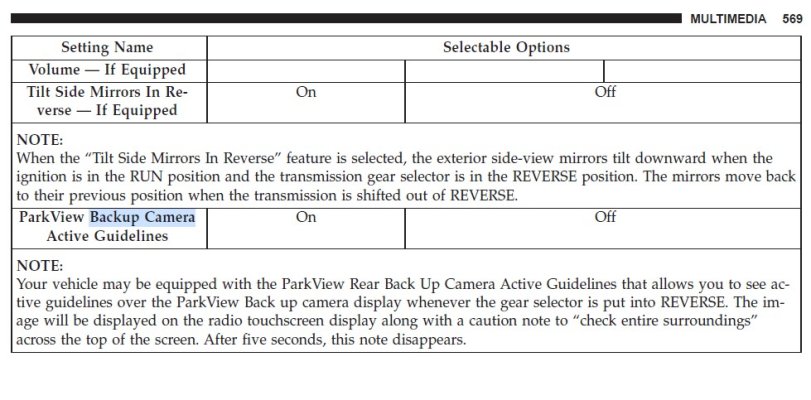
Setting Name Selectable Options
ParkView Backup Camera Delay On Off
NOTE:
The “ParkView Backup Camera Delay” setting determines whether or not the screen will display the rear view image
with dynamic grid lines for up to ten seconds after the vehicle is shifted out of REVERSE. This delay will be canceled
if the vehicle’s speed exceeds 8 mph (13 km/h), the transmission is shifted into PARK, or the ignition is switched to
the OFF position.