This is just standard customizable computer screen stuff that, if you are not familiar with, can be a bit overwhelming. If you work with Apple iPads or Microsoft Windows, you should be able to figure it out.
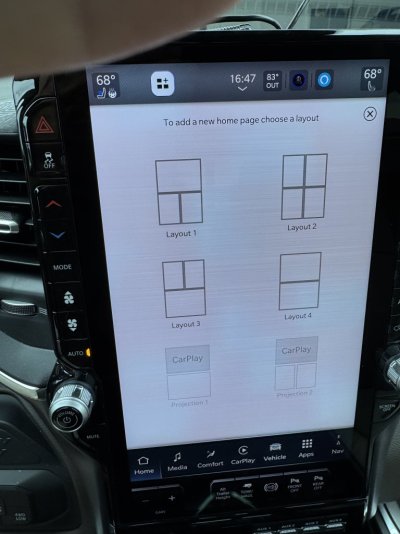
You have the "Home Screen" up and it is not configured yet. The Home Screen is designed to show "Widgets". Widgets are logical collections or groupings of applications and/or functions. To get started click on one of the boxes with a + sign to begin adding a widget to your Home Screen. Next select the applications shortcuts you want in that widget and where on the screen you want the widget to appear.
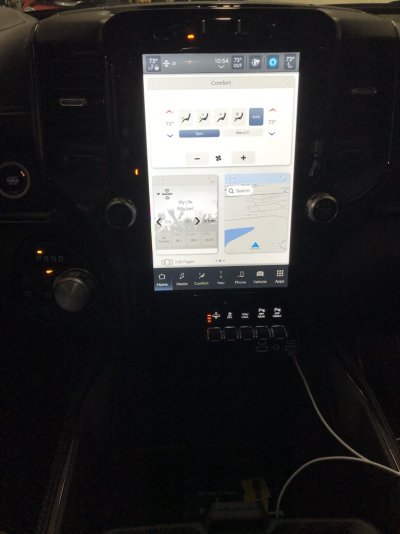
My Home Screen is shown in the first image below. At top is the "Car Play" widget showing Google Maps, Bottom Left is "Now Playing" widget showing what is playing on the radio, and Bottom Right is "Short Cuts" widget showing a collection of applications icons. I selected the apps that I want to show up in the Short Cuts widget, i.e., the ones I might use the most frequently.
View attachment 580964
The initial choice of widgets is shown in the second picture. I think this shows up if you click on one of the + signs on the screen you showed. You can select a pre-created widget, or create a new widget, name it, and then you can customize or modify what is in it.
View attachment 580965
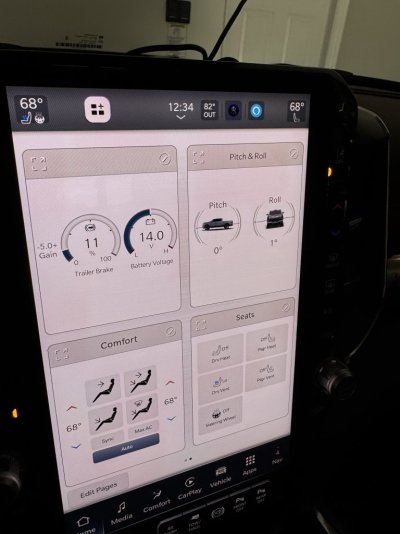
At the bottom of the Home Screen are two dots. This means you can swipe to the Left and set up completely different set of widgets on a second version of the main Home Screen. Swipe to the Right to return to the first Home Screen.
My second set of widgets is shown in the third picture. You can see I have created three groups of functions or widgets.
View attachment 580966
So...Click on one of the plus signs and start playing with it. You cannot hurt anything. You can change and rearrange things at will. There may be a learning curve but will get the hang of it.
Remember there are dedicated buttons on the bottom for Media, Comfort, CarPlay, Vehicle Settings, a Listing of all Applications, and the built-in Navigation System. If you want to use WAZE, Google Maps, Apple Maps you need to use CarPlay.
The Home Screen comes basically blank. It is for you to customize what functions you would most often use of like to see on the center screen. If you do not want to configure the Home Screen, then select one of the other choices at the bottom like CarPlay or Media. But, when you get tired of hunting around for functions under Vehicle or Apps, then you may realize what the home screen is good for. It is really not that difficult.


 toption to pop up. Any ideas guys?